Help centerPlanning
Calendar
See transactions and expected recurring bills on the days they happen, and add a transaction straight to a day.
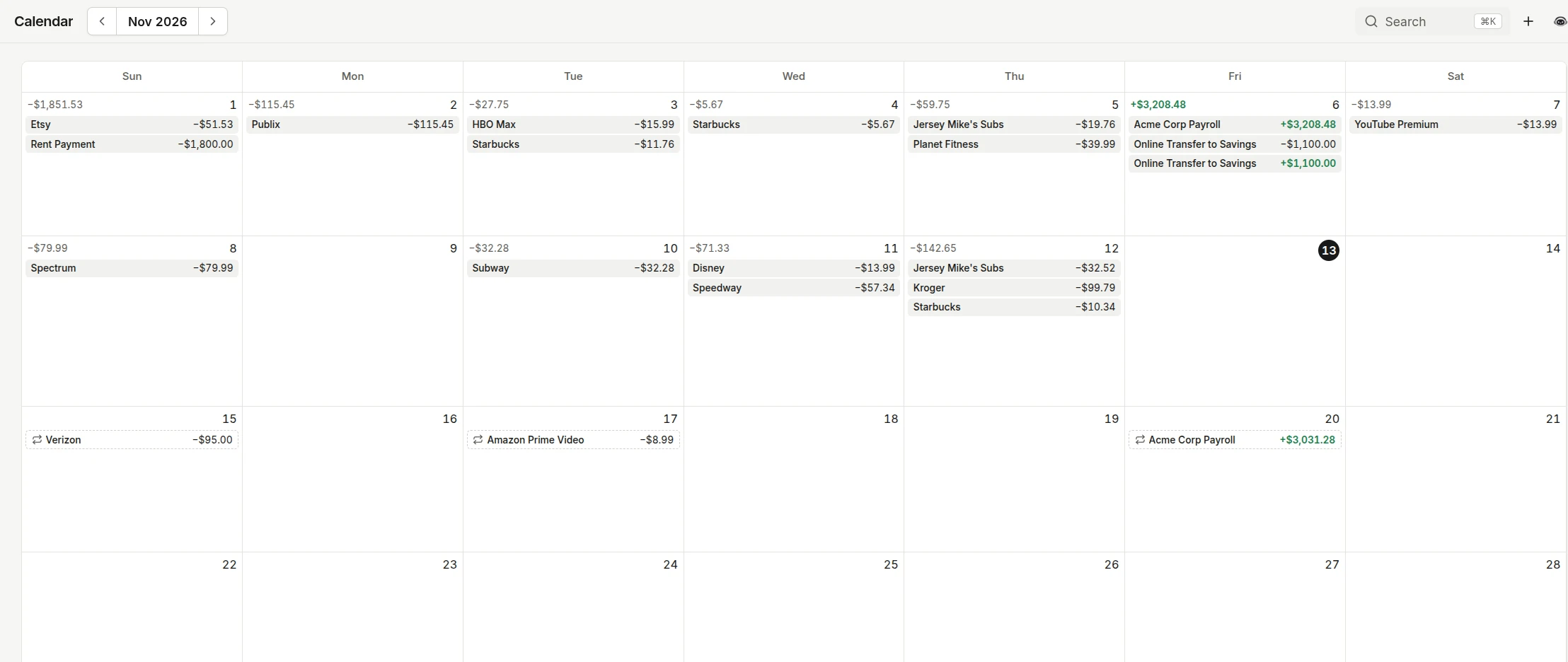
The calendar puts your transactions on the days they happened and your recurring bills on the days they are expected. We look at it before the start of a month to see which weeks carry rent, insurance, and subscriptions, so nothing lands as a surprise.
Read the month
Each day lists its transactions with their amounts, and a day with spending shows its total at the top. Recurring bills Copia expects show on their predicted day with a dashed outline and a repeat icon, so the future part of the month already has the bills you know are coming. Hover or click an entry to see its details.
Click a recurring bill to see how often it repeats, when it is next expected, and its past charges. Use the arrows in the header to move between months, and Today to come back. On a phone, each day shows the date with short amounts like $81 or $5.9K so every row stays the same height.
Add a transaction on a day
Right-click a day, or long-press it on a touch screen, and choose:
- Add transaction to add one with that day’s date filled in.
- Bulk entry to add several at once, each starting on that day.
You can switch between the two inside the form without losing the date.
Common questions
Where do the upcoming bills come from?
From recurring transactions Copia has detected in your history. Each one shows on the day Copia expects it next.
Can I delete a transaction from the calendar?
Yes, for transactions you added yourself. Right-click it and choose delete. Transactions from a bank connection cannot be deleted.