Help centerTransactions
Find and categorize transactions
Filter your transactions down to what you need, fix categories one at a time or in bulk, and see the totals for any slice.
The Transactions page lists every transaction from your connected and manual accounts, newest first. It is where you find a purchase, put it in the right category, and see what a group of transactions adds up to. Getting categories right here is what keeps the budget honest, so we put most of the cleanup tools on this page.
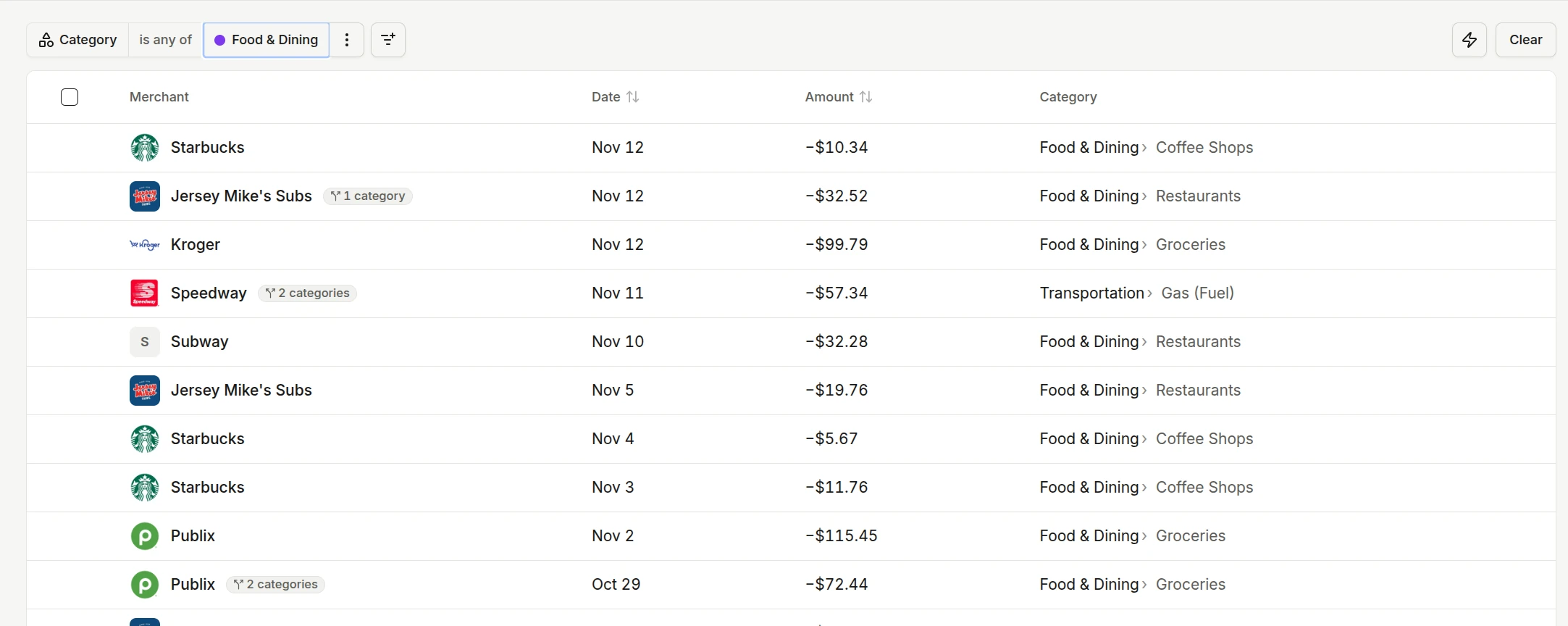
Filter the list
Choose Add filter (or press F) and pick a field, such as description, date, amount, account, category, merchant, or tags. Each filter becomes a chip you can change or remove, and Clear removes them all.
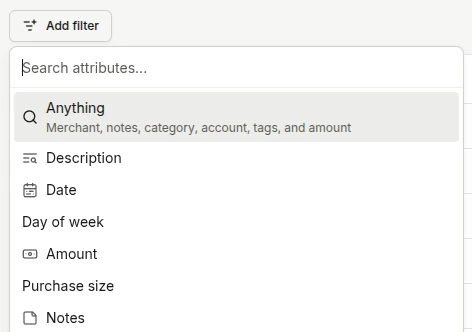
- Search everything. Ctrl+F on the list searches every field at once, ignoring case and punctuation.
- Dates that stay current. Date filters can be relative, like Last 30 days or 1 month ago, so a saved link still shows recent transactions next week.
- All of or Any of. With two or more filters, choose whether a transaction must match all of them or just one.
- Apply only this filter. A chip’s menu can drop every other filter in one step.
The totals bar under the filters shows how many transactions match, the dates they span, and money in, money out, and net for the whole filtered list, not only the rows on screen.
Change a category
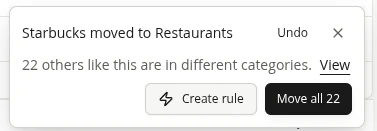
Click the category on any row, search for the new one, and pick it. The change saves right away. A toast then offers the next step.
- Undo puts the old category back.
- N others like this counts other transactions with the same description and a different category. View shows them, and Move all moves them too.
- Create rule opens a rule with this description and category filled in, so future transactions land in the right place on their own. See Transaction rules.
Change many transactions at once
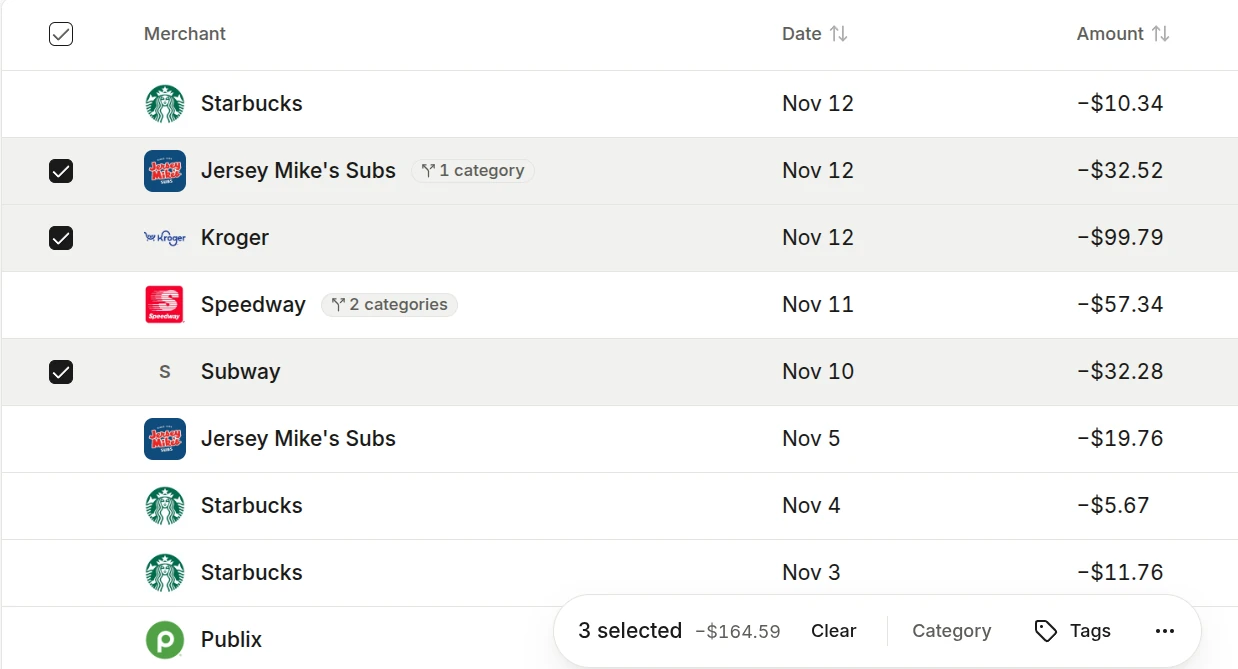
Hover a row to show its checkbox, or use the checkbox in the header to select everything that matches your filters, including rows that have not loaded yet. A bar appears at the bottom of the screen with the selection count and these actions:
- Category puts every selected transaction in one category.
- Tags adds tags, and you can create a new tag right there.
- Reset puts the bank’s original values back.
- Delete appears when every selected transaction is one you added yourself.
Copia asks before changing more than 25 transactions, or before changing everything with no filter set.
Open a transaction
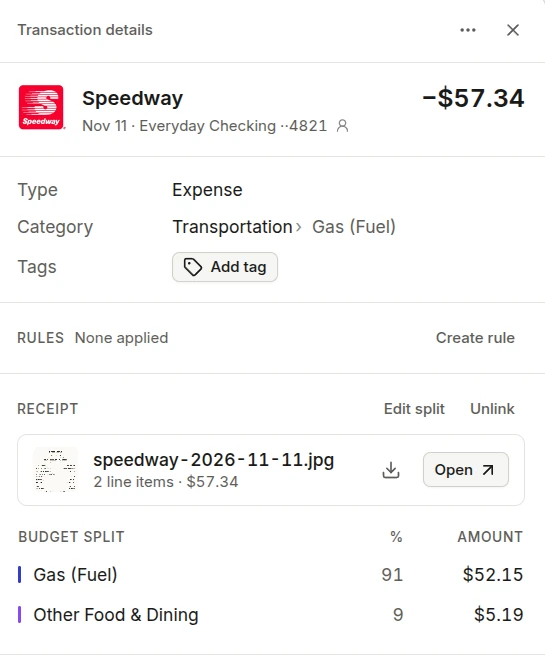
Click a row to open its details on the side. The panel shows the merchant, date, account, amount, category, and tags, any rules that changed it, a linked receipt and how it splits across categories, and your notes. The last line says where the transaction came from, such as "Imported from chase.csv".
Common questions
Why can I not delete a transaction?
Only transactions you added yourself can be deleted. Transactions from a bank connection cannot, but you can still recategorize them, tag them, or reset them to the bank’s values.
How do I undo a bulk change?
Every bulk action from the selection bar can be undone for 10 minutes from the toast that confirms it.
How do I export transactions?
Filter the list to what you want, then choose Export in the top bar. The CSV has the same columns as the import template, plus Notes.
Related articles
- Transaction rulesTell Copia how to categorize and tag transactions that match a pattern, and it does it every time new ones arrive.
- Import transactions from a file or photoBring in transactions from a bank CSV, a PDF statement, or a photo of a statement, with duplicates caught before anything is saved.
- Your monthly budgetPlan what each category gets this month, see what is left as you spend, and carry the plan into next month.